
On many watches (see below) dwMap Premium lets you view a background map (often called a basemap) on your watch screen as well as your chosen route line.
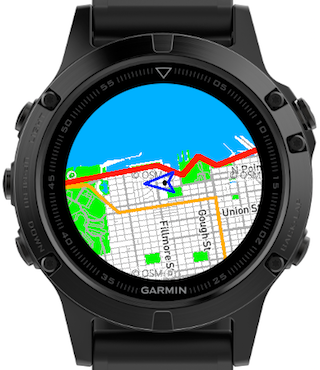
Important: The low data speed on the low-power Bluetooth connection between your watch and phone means that background map images will update more slowly than the other details on the dwMap map screen. This is very noticeable when you start the app, or change zoom levels, but as you move during an activity dwMap incrementally downloads new map files ahead of you for the current zoom level, and you should nearly always have a map beneath your current position arrow. The download speed is highest when Garmin Connect Mobile is running in the foreground on your phone (is the one visible on-screen), so that might be useful when getting the initial map display.
Compatible Watches
Even though we have optimized the color and designs of the background maps to make them as "compressible" as possible, the image files for the background maps are still relatively large, and we can only offer this feature on watches with 128kB or more of memory allocated to each app. These watches are:
- All Venu models, including Venu, Venu Sq, Venu 2/2S, Venu 2 Plus, Venu Sq 2, Venu 3/3S, Venu 4, Venu X1
- Vivoactive 4/4S, Vivoactive 5, Vivoactive 6
- Vivoactive HR, Vivoactive 3 and 3 Music
- Fenix 5, Fenix 6, Fenix 7, Fenix 8
- Forerunner 55
- Forerunner 165, 245, 255, 265, 570
- Forerunner 645 and 645 Music
- Forerunner 935, 945/945 LTE, 955, 965, 970
- Forerunner 745 and 735XT
- Epix Gen 2 and Quatix 7
- Enduro, Enduro 2, Enduro 3 and Chronos
- Instinct 3 AMOLED
- Marq Adventurer, Athlete, Aviator, Captain, Commander, Driver and Expedition
- Approach S60 and S62, D2 Charlie and Descent Mk1
This and a few other features, such as the Weather data field, are the only Premium features that has this restriction: nearly all Premium features work on all the watches that dwMap supports.
Advanced Features 2025
If you have a Venu 2/3/X1, Vivoactive 5/6, Forerunner 165/255/265/570/955/965/970, Fenix 7/8, Enduro 3 or Epix Gen 2 then you'll see some additional options (labeled here as "advanced features"), most importantly the ability to rotate maps to support track-up mode.
Using the Background Maps
-
You must turn maps on in the dwMap menu. If you have not used the menu within dwMap see dwMap App Menu for how to find it. It will have the option Show Maps or Hide Maps. Your last choice is remembered when you start the dwMap app again.
Note since this menu option is an "action" to take, when the maps are currently enabled the menu option will say Hide Maps.
If your watch is one those with "advanced features" (see above) you'll find this option in the Maps menu item. - Your watch needs to be connected to your phone and your phone connected to the Internet, for this feature to work. (All other dwMap features work offline, since that is an important goal of the app.)
- In Settings on the website you can choose Google Maps, OpenCycleMap (OCM), satellite imagery or our specially designed Watch Optimized option. The Watch Optimized map is exclusive to dynamicWatch and designed to ideally match the color palette available on the watches. It uses the same OpenStreetMap worldwide map data as OpenCycleMap and is continuously updated.
- On most watches, background maps can only be drawn in "north-up" orientation. If you usually use "track-up" mode (as chosen on your Settings page), dwMap will automatically switch to "north-up" while background maps are turned-on, then back to "track-up" when maps are off.
- However, if your watch is one those with "advanced features" (see above) you can opt to override this behavior and so you can get "track-up" background maps. Go to Maps in dwMap's menu when you have the maps turned on, and you will see the option Draw Track-up and select it to switch to this mode. This mode takes a little more time (and battery) to draw compared to north-up mode, which is why you have this option to turn it on and off.
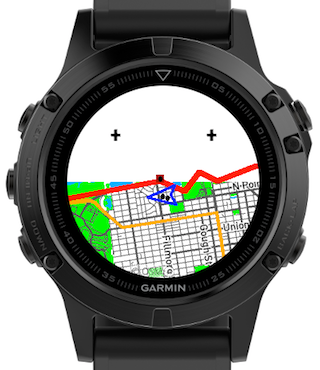
- Plus signs are displayed while the tiles (quadrants) that make up the map are being downloaded. If a plus sign disappears but no map is shown there, the app will try to download that quadrant again later.
Comments
0 comments
Article is closed for comments.